As we all know, Elementor is a powerhouse that offers a wide variety of widgets and design elements to help you create eye-catching pages for your website. One of the most commonly used widgets within Elementor is the icon box. An icon box is a versatile tool that allows you to display information in a visually appealing way. Icon boxes are a popular design element for websites, and are most commonly used on homepages and service pages to highlight key features, services, and much more. They are a great way to break up long sections of text, draw attention to what’s important, and make your website more visually appealing. With Elementor, creating and customizing icon boxes is quick and easy, allowing you to enhance the overall appeal and experience of your website. In this tutorial, we will walk you through a step-by-step process on how to create and customize your own icon box.
Creating an Icon Box in Elementor Pro
Whether it’s to promote your product’s features or highlight unique selling points, icon boxes are versatile and can be used for just about any piece of information. With Elementor’s easy-to-use interface, creating and customizing these icon boxes is a breeze, even for those with no web design experience. Let’s get started with creating your own icon box.
- Open the page in which you’d like to add the icon box to.
- In Elementor’s page builder, search for the “Icon Box” widget. It will be located under the “Basic” widgets.
- Drag and drop the icon box into your desired section.
- Once happy with the location, be sure to update your changes.
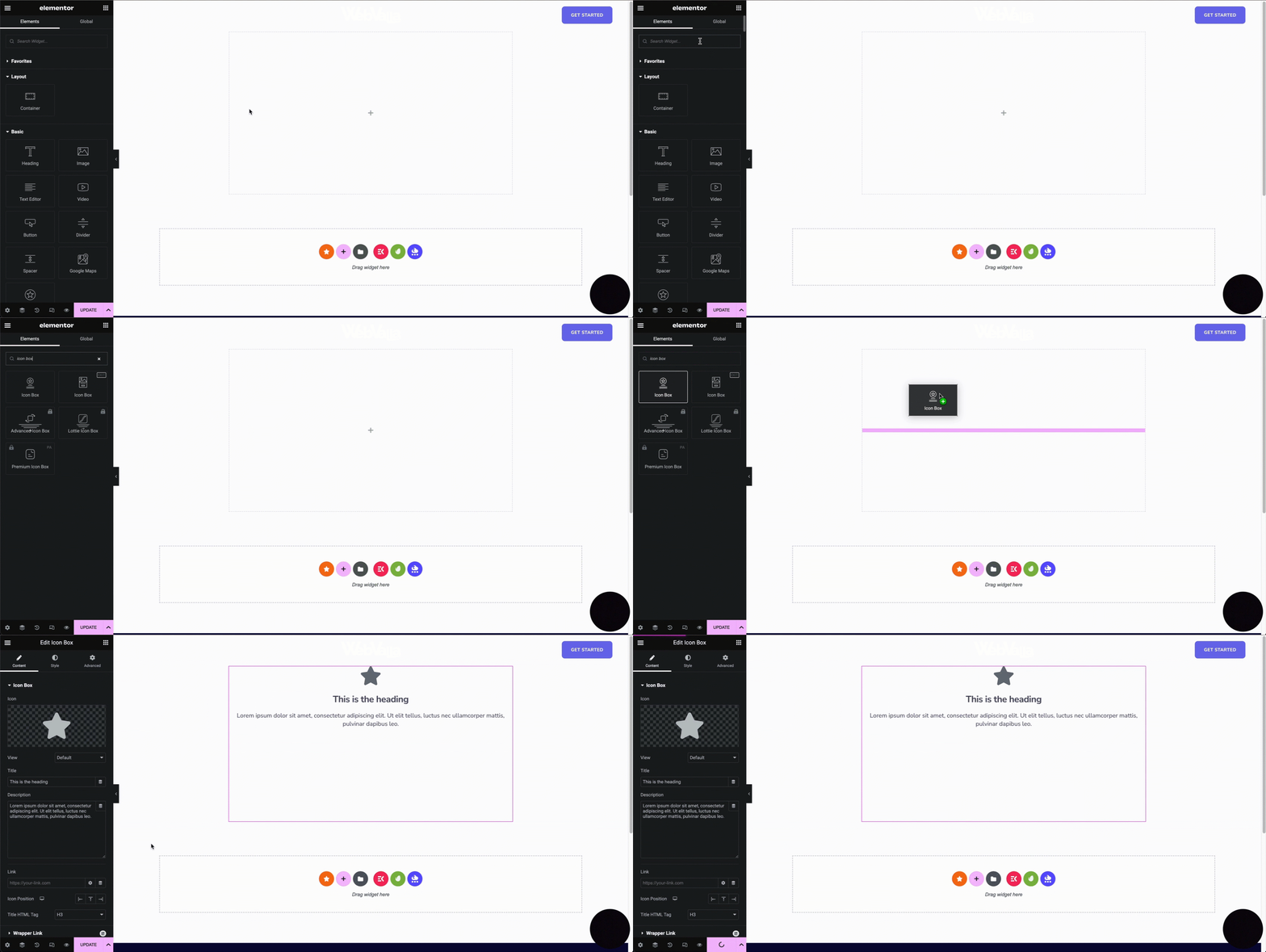
Now it’s time to make it stand out and match your website’s design. Customizing icon boxes is a simple and fun process. From changing your icon color and size, to adjusting typography, there are endless possibilities for creating a unique and eye-catching icon box. Let’s jump into the next section to learn more about how you can customize icon boxes.
Customizing an Icon Box in Elementor Pro
As we just mentioned, there are endless possibilities when it comes to customizing icon boxes in Elementor. Whether you’re highlighting product features, or promoting your mission and vision statements, Elementor has everything you need to get your message across in a creative, professional manner. Follow along to see how you can customize your icon boxes.
Content:
- Icon: Choose your icon. You can pick from a wide list of Font Awesome icons.
- View: Set the view of the icon to Default, Stacked or Framed. Stacked is with a background and framed is a border around the icon. If Stacked or Framed is chosen, you have the option between a circled or squared background.

- Title: Insert your icon box title.
- Description: Insert your description text. You have the option to leave this blank if you only want an icon and title.
- Link: You can add a link to your icon box here by inserting a URL. You can also link to other pages in your site by simply typing the name of the page in the link text box. Don’t forget to choose how your link opens.
- Icon Positioning: Set the position of your icon to the left, top or right side of the box.
- Title HTML Tag: You can set the title tag of your icon box as well. Choose from H1-H6, div, span or p.
Style:
- Icon
- Primary Color: Select your primary color. Note: if you chose stacked or framed for your icon’s view, you will also have a secondary color.
- Hover: Choose the icon’s color on hover. You can also add an animation to the icon as well.

- Spacing: Adjust the spacing between the icon and title.
- Size: Adjust the icon size.
- Rotate: You can rotate the icon here.
- Content
- Alignment: Adjust your content to the left, center or right of the box.
- Vertical Alignment: If your icon positioning is to the left or right, you can change the vertical alignment of your icon here.

- Title:
- Spacing: Adjust the spacing between your title and description.
- Color: Change the color of your title.
- Typography: Set the typography settings for your title. Here is where you have full range of customization options including text size, font, decoration, spacing, etc
- Text Stroke: Add a stroke to your title text. This is good for adding a border around your title.
- Text Shadow: Add a shadow to your title. This is great for adding effects such as a stroke shadow, glow, 3D and more! Take a look at how to create a hard text stroke shadow below.

- Description:
- Color: Change the color of your description text.
- Typography: Set the typography settings for your description text. You have full range of customization options just like with your title text.
- Text Shadow: Add a shadow to your description text.
Conclusion
Elementor icon boxes are an excellent way to make your website stand out and engage visitors. With its ease of use and customization options, anyone can create appealing and effective icon boxes that showcases content in an organized fashion. By utilizing this feature, you can enhance the user experience of your site while providing clear, concise messages. From highlighting your mission statement to displaying key features, icon boxes are a versatile tool for any web designer. Now that you’re familiar with how to use icon boxes, it’s time to create your own!