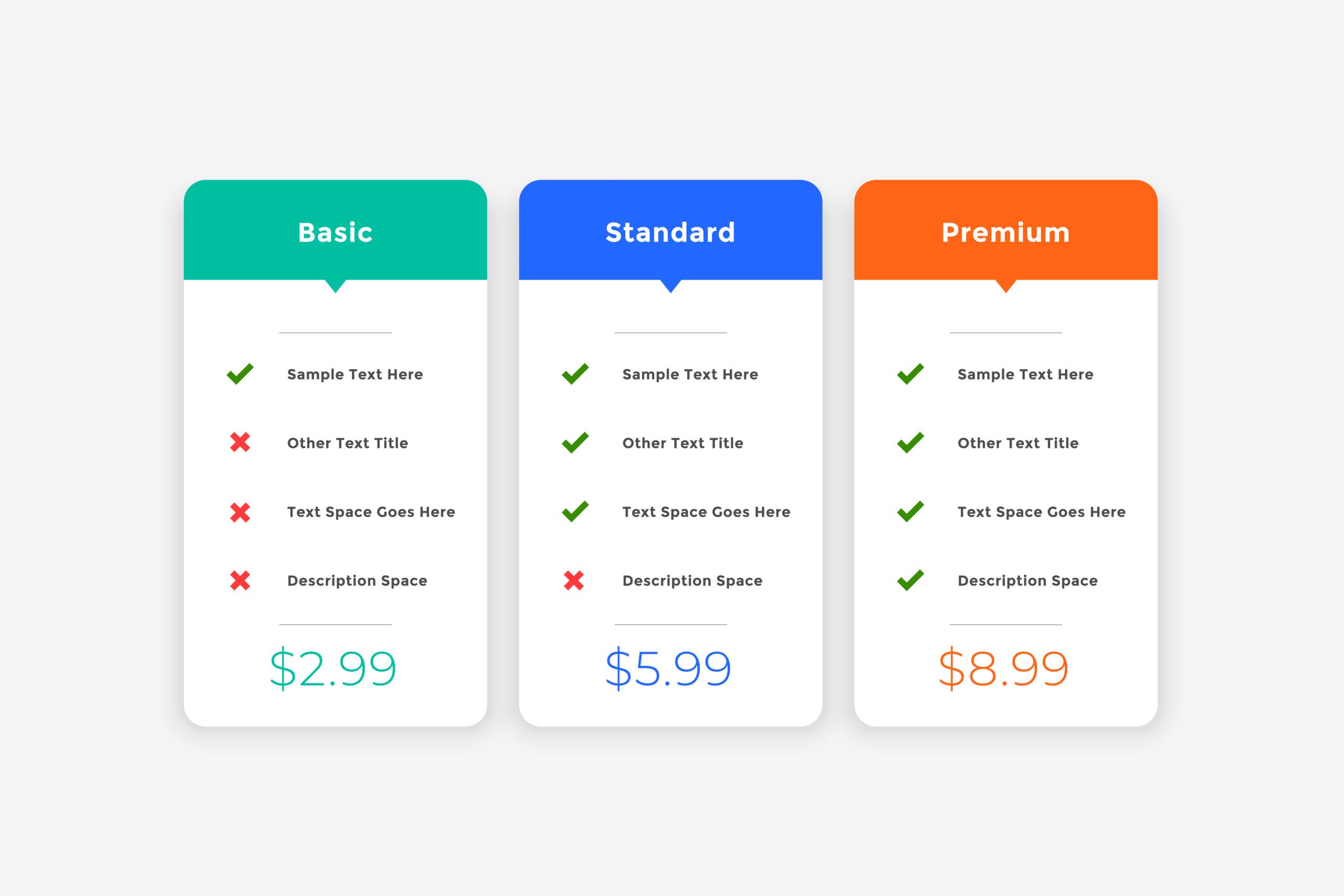
Nowadays, price tables are an essential element of any business website, especially those promoting products or services. They are a great way to showcase different pricing options for products or services, making it easy for potential customers to understand your pricing points and compare with other similar products or services. Essentially, a price table is a comparison chart that displays multiple pricing plans side-by-side. They are great for highlighting different packages, features, benefits and more. By presenting information in such a manner, you can promote your products or services while helping customers make informed decisions.
Pricing tables are most commonly seen on websites that offer products or services with multiple levels and pricing options, such as subscription-based services like Dropbox or software companies like HubSpot. In addition, they are also frequently seen on websites that offer services such as web design, marketing and even freelancers who have a variety of packages to choose from. In this blog, we will be discussing how you can add a price table to your website using Elementor Pro.
Adding a Price Table with Elementor Pro
Adding a price table to your website provides several benefits beyond just displaying your pricing in a clear, organized manner. In fact, adding a pricing table to your website can help establish credibility and trust with potential customers. By presenting your pricing structure in an easy-to-read format, you can show that your business values transparency and honesty. In addition, by having your pricing structure clear and upfront, you can reduce inquiries and improve the overall customer experience of your site. Now, let’s jump into how you can add a price table to your website.
- First, open the page in Elementor in which you’d like to add a price table to
- Then, in Elementor’s page builder, search for the “Price Table” widget.
- Now, drag and drop the price table widget into your desired section. If you would like additional price tables, simply right-click the pencil in the top-left of the widget and select “Duplicate”. Repeat until you have all the prices you want to display.
- Once you are satisfied with the number of price tables, be sure to update your edits.

Now that you have Elementor Pro’s default price table in place, it’s time to tailor it to your brand. In the next section we will be breaking down the customization options for Elementor Pro’s price table.
Customizing Elementor Pro’s Price Table
Customizing a price table with Elementor Pro is a simple and straightforward process even if it looks a little daunting. The price table widget comes with a variety of customization options to help make your table stand out and represent your brand. From changing colors, to adding icons next to your features, Elementor has everything you need to make your price tables appeal to viewers. Let’s take a look at all of the customization options you have to choose from.
Header:
- Title: Enter the title of the specific price plan.
- Description: Enter the description that appears below the title of your plan.
- Title HTML Tag: Set the header’s title tag.

Pricing:
- Currency Symbol: Select the currency symbol you want displayed.
- Price: Set the exact price, including cents, of your product or services.
- Currency Format: Select between Default and the thousands separator format (“1.234,56”). Refer to the image below for an example.
- Sale: Turn “ON” if there is a sale in place. If selected, you can add the original price as well.
- Period: Enter the text for the time period of each payment. This will be displayed under the price. If it’s a one-time payment simply delete the default text.
Features: This is where you can list all the features of your price point. You can add and/or delete items as well as reorder them if need be.
- Text: Enter the feature description here.
- Icon: Select an icon to be displayed next to your features.
- Icon Color: Adjust the icon color.

Footer:
- Button Text: Write the text that will be displayed in the button. If you do not want to include a button, you can simply delete the default “Click Here” text.
- Link: If you decide to use a button, enter the URL here. Buttons are a great way to encourage visitors to take action, such as signing up for a subscription or purchasing a product. Some examples of this can be buttons that read, “Buy Now”, “Learn More” or “Sign Up”.
- Additional Info: You can include any additional information here. This is great for including any specifications, limitations or other important details that your viewers should know.
Ribbon: The “Ribbon” part of Elementor’s price table widget is a design element used to draw attention to a particular product, service or package. It’s a small banner and often displays text such as “Most Popular” or “Best Value” to highlight a recommended or popular choice. It can even be used to highlight a new price or a sale, displaying the text It also helps add a visual interest and can help visitors quickly identify the price that fits their needs.
- Show: Turn the slider to show or hide the corner ribbon.
- Title: Enter your ribbon’s text.
- Position: Have your ribbon displayed on the top-left or top-right of your price table.
Now that you are familiar with adding the content to align with your product or service, it’s time to move onto the fun part, styling your price table. The “Style” tab of Elementor’s price table widget is where you can customize the price table’s colors, typography, sizing, spacing, and alignment of items. Let’s dive into the next section and learn more about Elementor’s styling options.
Styling an Elementor Pro Price Table
Elementor Pro’s price table widget has endless customization options, allowing you to create an eye-catching price table that matches your site’s overall design. With the “Style” tab, you can do just about anything you need to make it visually appealing and engaging for your visitors. In this section, we will explore the various styling options available and how you can use them to create a price table that stands out.
Header:
- Background Color: Select the background color for the top section of your price table.
- Padding: Adjust the padding for the heading. This is great if you want to make your price table wider.
- Title:
- Color: Select the color for the title and sub title.
- Typography: Edit the title and subtitle’s typography. You have the ability to adjust the fonts, sizing, spacing and more.

Pricing:
- Background Color: Select a background color for the pricing area.
- Padding: Adjust the padding of the pricing area.
- Color: Choose the color of the price.
- Typography: Adjust the typography of the price to your preferences.
- Currency Symbol:
- Size: Adjust the size of the currency symbol.
- Position: Align the currency symbol to the left or right of the price.
- Vertical Position: Align the currency symbol to the top, middle or bottom of the price.
- Fractional Part: Note: this option is only available if you selected the Default currency format.
- Size: Adjust the size of the fractional part of the price.
- Vertical Position: Align the fractional part to the top, middle or bottom of the price.
- Period:
- Color: Choose the text color for your time period.
- Typography: Adjust the typography settings for your time period.
- Position: Display your time period either below or beside the price.

Features:
- Background Color: Set the background color of the features list.
- Padding: Adjust the padding of the features list.
- Color: Set the text color of the features list.
- Typography: Adjust the typography settings of your features.
- Alignment: Align your features list to the left, center or right of the price table.
- Width: Adjust the width of the feature list. This is useful if you want to have your text on two lines.
- Divider
- Style: Select the style of the divider. Choose between solid, double, dotted or dashed.
- Color: Set the color for the divider.
- Weight: Adjust the divider’s thickness here.
- Width: Adjust the width of the divider.
- Gap: Adjust the distance between the your dividers and feature items.

Footer:
- Background Color: Choose the background color for the footer area.
- Padding: Adjust the padding of the footer area. This is great for spacing your button further away from the feature list.
- Button
- Size: Choose the button size.
- Text Color: Set the button’s text color here. You can adjust it’s color on hover too.
- Typography: Adjust the typography settings of the button text.
- Background Type: Choose between a solid color or gradient for your button.
- Color: Set the button color. You can also change the color on hover too.
- Border Type: Select a border for your button if desired. If chosen, you will have the ability to adjust it’s width and color.
- Border Radius: Adjust the border radius to control border roundness.
- Text Padding: Control the distance between the button’s text and border.

Ribbon:
- Background Color: Set the color of your ribbon here.
- Distance: Control the distance between the ribbon and corner of the price table.
- Text Color: Select your ribbon’s text color.
- Typography: Adjust your ribbon’s typography settings.
- Box Shadow: If desired, add a shadow effect to your ribbon. Choose between outline or inset.

Conclusion
While there may have been a lot to cover, it’s clear that Elementor can make it simple to create appealing price tables that perfectly align with your company’s branding and design. With having the ability to customize just about every aspect of the price table, you can ensure that it will not only be visually appealing, but that it’ll also help drive engagement and conversions. Whether you’re new to Elementor or a seasoned veteran, taking advantage of Elementor’s price table widget can greatly improve your site’s functionality and user experience. Now that you’re familiar with the ropes, it’s time for you to create your own stunning price table.