A “Heading”, also commonly known as a title tag or H-tag, is a headline or title that is used to break up content and is an essential part of on-page SEO as they help search engines understand the content of a web page. Headings are a key-factor of web design. They provide structure, hierarchy and readability to a website, and can have a significant impact on both the user experience and the performance of a website. With the new and improved Elementor Pro, creating powerful, eye-catching headings is easier than ever before.
Elementor Pro offers numerous options for setting up stylish headings. With the Heading widget, you can easily adjust font size, text alignment, background color and plenty of other styling options for each heading. You can also use it to define different levels of headings that make your content easier to read and navigate.
Elementor Pro has made significant improvements in the way headings are designed and customized. With a focus on customization, responsiveness, accessibility, and dynamic content, Elementor Pro has everything you need to create powerful and effective headings.
How Do I Create a Heading in Elementor Pro?
Elementor Pro may look a bit overwhelming to new users. However, creating a heading is a simple process that can be done in just a few steps.
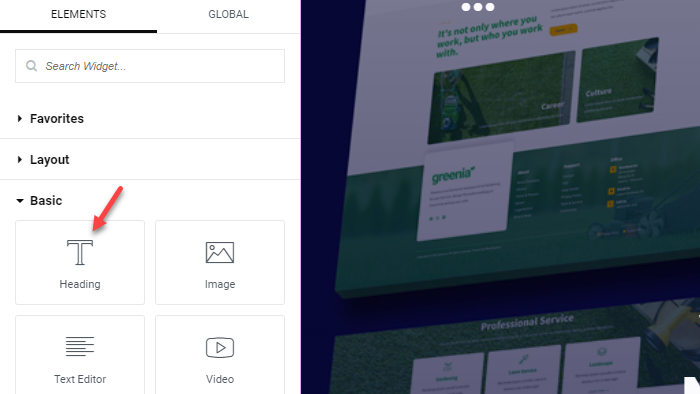
- Open Elementor: Log in to your WordPress website and open the page you’d like to edit with Elementor.
- Drag and Drop a Heading Widget: In the Elementor editor, locate the “Widgets” panel on the left-hand side of the screen. Click and drag the “Heading” widget from the panel and onto your page. From here, you will be able to place the heading wherever you’d like.
- Edit the Heading: With the heading widget selected, you can now edit the heading’s text, font, size, color, and more. To edit the text of the heading, simply click on the placeholder text and start typing.
- Customize the Heading Design: Use the “Style” tab in the Elementor panel to customize the heading’s design such as font, color, etc. Use the “Advanced” tab in the Elementor panel to further customize your heading with layout designs, borders, motion effects, and much more. We will dive deeper into customization in the next section.
- Save Your Changes: Don’t forget the most important step! Once you’re happy with your heading and it’s design, click the “Update” or “Publish” button at the bottom of the Elementor panel to save your changes.
How Do I Customize My Heading in Elementor Pro?
There are plenty of ways to customize your headings in Elementor Pro. By using the “Content” and “Style” tabs in the Elementor panel, you can do just about anything to your heading.
Content
The “Content” tab in Elementor allows you to customize the text and content of your heading. Here’s a list of what you can find in the “Content” tab:
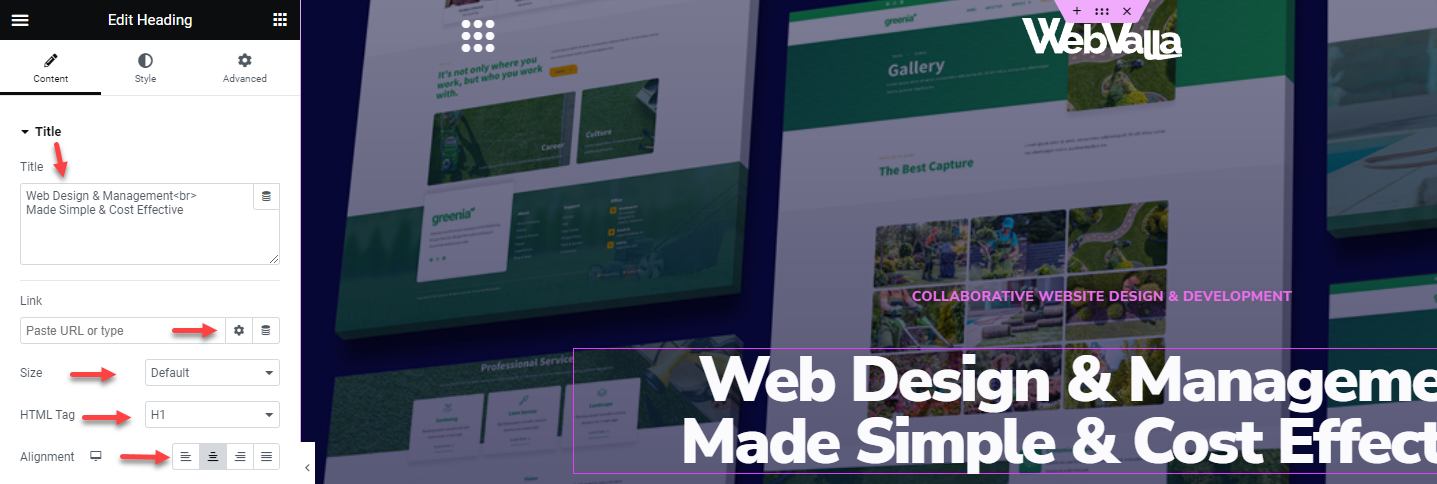
- Title: This field allows you to enter the text that will appear in your heading widget.
- Link: If you want to add a hyperlink to your heading, you can paste your link URL here. You can decide how you want the link to open by clicking the “Link Options” button next to the URL textbox.
- Size: The “Size” section allows you to select your desired heading size whether it be small, medium, large, XL, or XXL.
- HTML Tag: This options allows you to customize the HTML tag that wraps around your heading text. For instance, any heading that’s at the start of a page is an H1 tag, while the headings for each section are typically H2 tags.
- Alignment: This option allows you to align the text of your heading to the left, center, right, or justified.
Style
In the “Style” tab you can find just about everything you need to customize the visual appeal of your headings. Here’s what you can find in the “Style” tab:
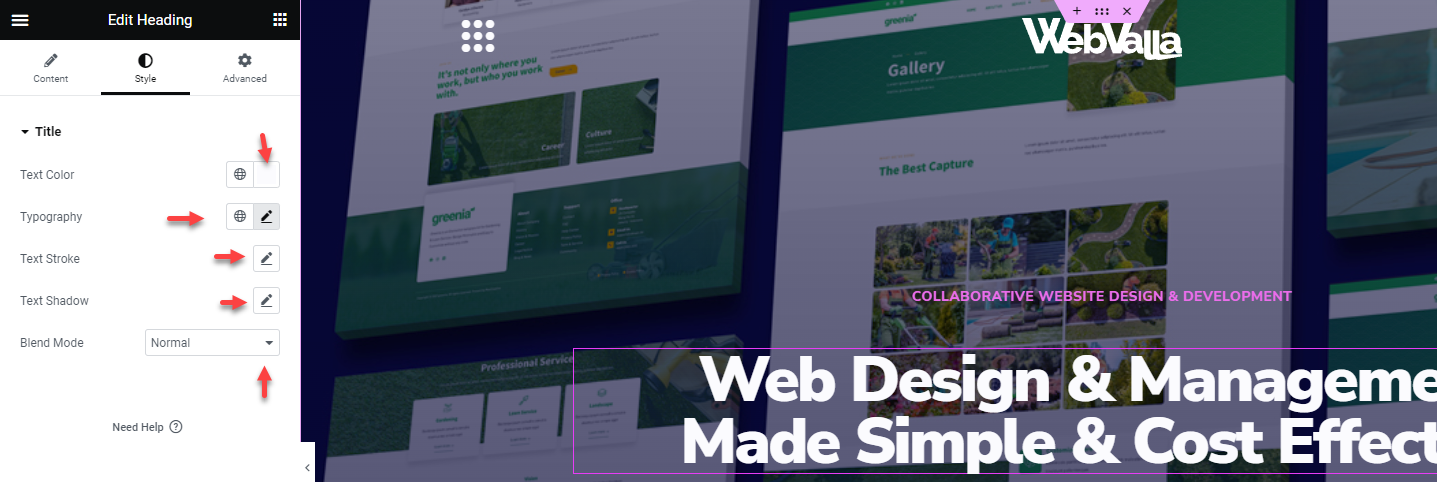
- Text Color: This section allows you to change the heading to your desired color.
- Typography: The “Typography” section allows you to fully customize your heading. You will have the ability to change the font family, font size, font weight, style, decoration, line-height, letter and word spacing.
- Text Stroke: The “Text Stroke” options allows you to add an outline or stroke effect to your heading.
- Text Shadow: This option will allow you to add a shadow effect to your heading text. You have the ability to adjust the shadow color, size, blur, and position.
- Blend Mode: The “Blend Mode” option allows you to change how the background interacts with the content in front of it. The “Blend Mode” determines how the background color or image will blend with the content in front, creating different visual effects.
Creating and customizing your headings is a fun process, but when you are tasked with changing multiple headings it can become time consuming. That’s where Elementor Pro comes into play. Want to learn how to change your headings on all pages with just a few clicks? Check out our “Site Settings” post to learn more!
How Can I Make My Heading Stand Out?
With Elementor Pro, there are many ways to get your headings to stand out. One of the best heading features that Elementor Pro has is the “Animated Headline” widget. This widget allows you to add eye-catching animated text with a variety of effects to it such as typing, rotating, and scaling. Here’s how to get started:
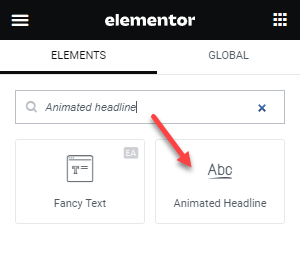
- Open Elementor and go to the Elementor panel.
- In the Elementor panel, search “Animated Headline” and drag and drop to your desired place.
- The “Content” tab is where you will be able to choose the animation as well as input any necessary text to bring the animation to life.
- You can further customize your animated headline by using the “Style” tab to adjust colors, typography, and more.
- As always, make sure you preview your changes and click “Update” once completed to save your changes.

The “Animated Headline” widget is a fun and creative way to add attention-grabbing text to your website. By using this widget effectively, you can create a memorable and engaging experience for all viewers.