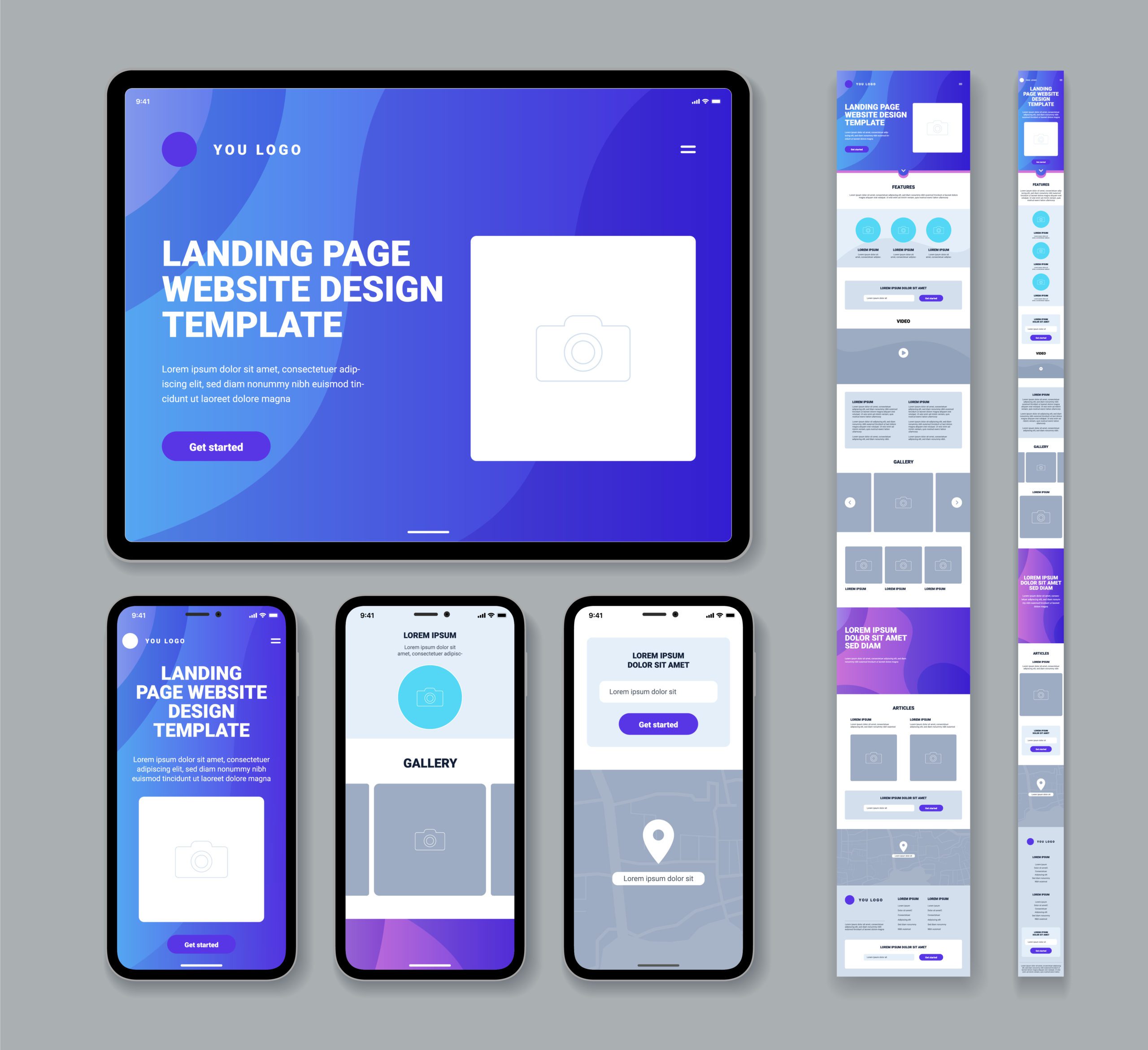
Nowadays the majority of people are technology driven, constantly on-the-go, and will most likely have their cell phone or tablet on standby. With this shift in technology, more and more individuals have started to use their personal devices for surfing the web, writing emails, etc. As this transition becomes more popular, it’s becoming increasingly important to ensure that your website is optimized for all screen sizes. This is where Elementor Pro comes in handy. Elementor Pro has responsive design features including Desktop, Tablet, and Mobile modes that make it easy to create content that looks great on all devices. Optimizing content that fits different screen sizes is essential because it ensures that your website functions properly, regardless of screen size or device the visitor is using. By optimizing website content, you provide a more user-friendly experience, ultimately resulting in higher engagement and longer time spent on the site. Additionally, search engines like Google now prioritize mobile-friendly websites. So, optimizing your content can greatly increase your website’s visibility and search engine rankings.
How to Toggle Between Screen Sizes in Elementor Pro
Elementor Pro allows you to optimize the design of your website for a variety of screen sizes, ensuring that your website looks great and functions properly on any device. Toggling between screen sizes in Elementor Pro is simple. Once you’re in the Elementor editor, you can simply switch between screen sizes by following these steps:
- Open the Elementor editor for the page you’d like to view.
- Find the “Responsive Mode” icon and click on it. Refer to the image below to see the icon.
- Once you click on the “Responsive Mode” icon, a bar will appear across the top of your screen with three options: Desktop, Tablet Portrait, and Mobile Portrait with their respective aspect ratios. These are the different screen sizes that Elementor allows you to work in.
- Once you are done adjusting content, simply re-click the “Responsive Mode” icon to toggle back to your original screen size. As always, make sure your update any changes!


Being able to toggle between different screen sizes is actually highly beneficial. By previewing your content in Elementor’s responsive mode, you have the ability to see how it will look on the viewer’s end regardless of which device they are using. This is a great tool to see how your content looks and if there’s any changes that need to be made accordingly. On top of that, it’s a huge time saver. By having the ability to preview your site on all screen sizes you’re able to catch onto any design issues early on in the process.
How to Adjust Content for Different Screen Sizes in Elementor Pro
Many of Elementor’s editable features have Desktop, Tablet, and Mobile settings that can be adjusted. Adjusting content to be more responsive can be done in a few ways, like following the steps in the prior paragraph. However, let’s say you want to adjust content for different screen sizes on-the-go as you’re working. How would one do so? Simple! Just look for the “Viewport” icon

When it comes to creating a website, it is important to consider the user experience on all devices. Whether users are viewing your site on their laptops, tablets, or smartphones, you want them to have an enjoyable and informative experience. This means that content should be tailored to each device’s screen size and capabilities. Whether it be using concise content or optimizing images based on screen size, there’s plenty of ways to make a powerful, yet responsive website.
Conclusion
With everyone on-the-go now, it’s crucial that your website is accessible on all platforms using Elementor Pro’s responsive settings, you can ensure that your website looks clear and performs well on all devices. Previewing your work in each responsive mode is a great way to catch any issues and stay on-top of your designing. By following best practices for responsiveness and optimization, you can create a seamless user experience that keeps your visitors engaged. If you’re looking to learn more about optimizing your website and some of the best practices to do so, be sure to check out our other tutorials!